LightCam Setup: End-to-End in 5 Minutes
Complete guided setup flow with the expected screens at each step.
LightCam Setup: End-to-End in 5 Minutes
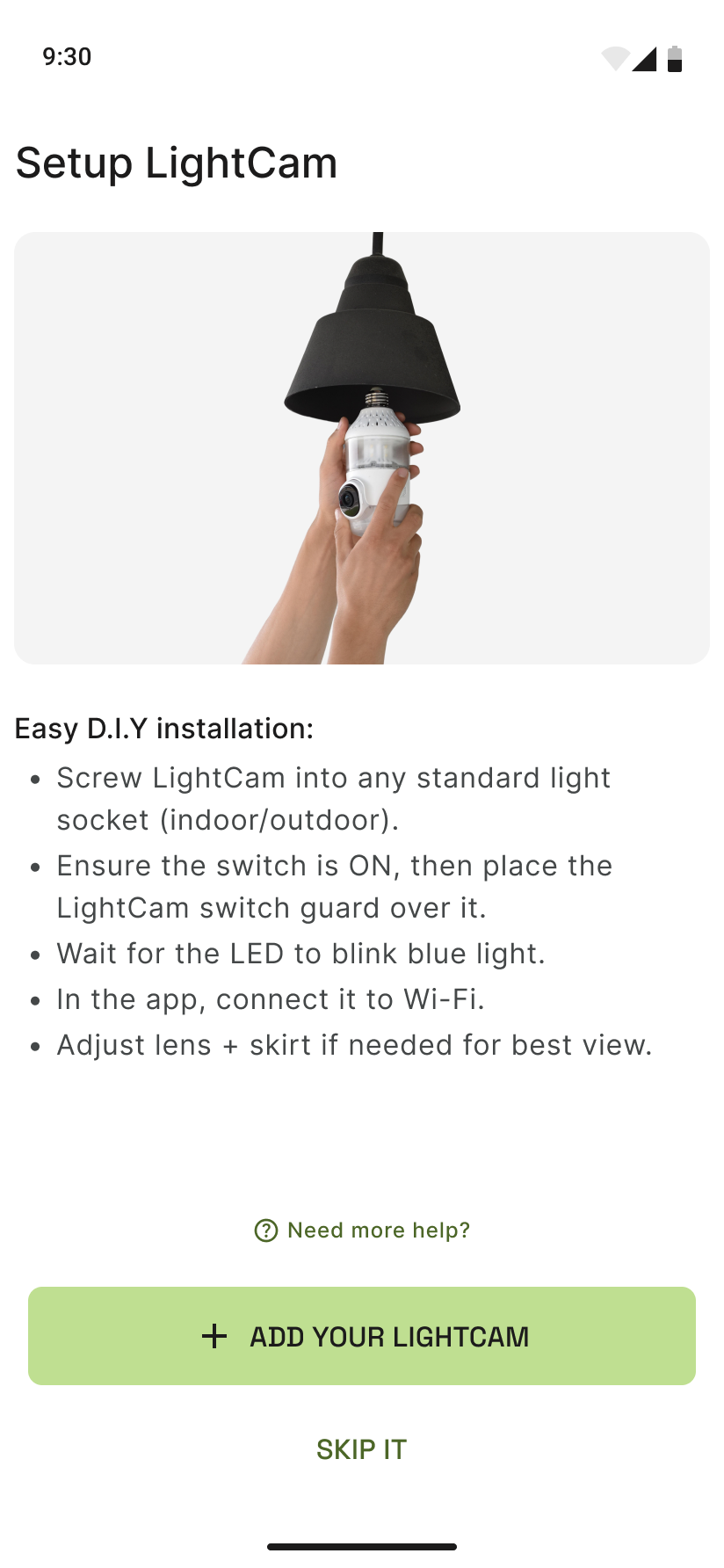
Follow these steps to add your first LightCam and get it online quickly.
Before you start
- LightCam twisted into a standard light socket (indoor or outdoor).
- Light switch turned ON.
- LightCam switch guard in place (if using).
- Phone on the same Wi‑Fi network you want the camera to use.
- App installed and opened.
Step-by-step guide
-
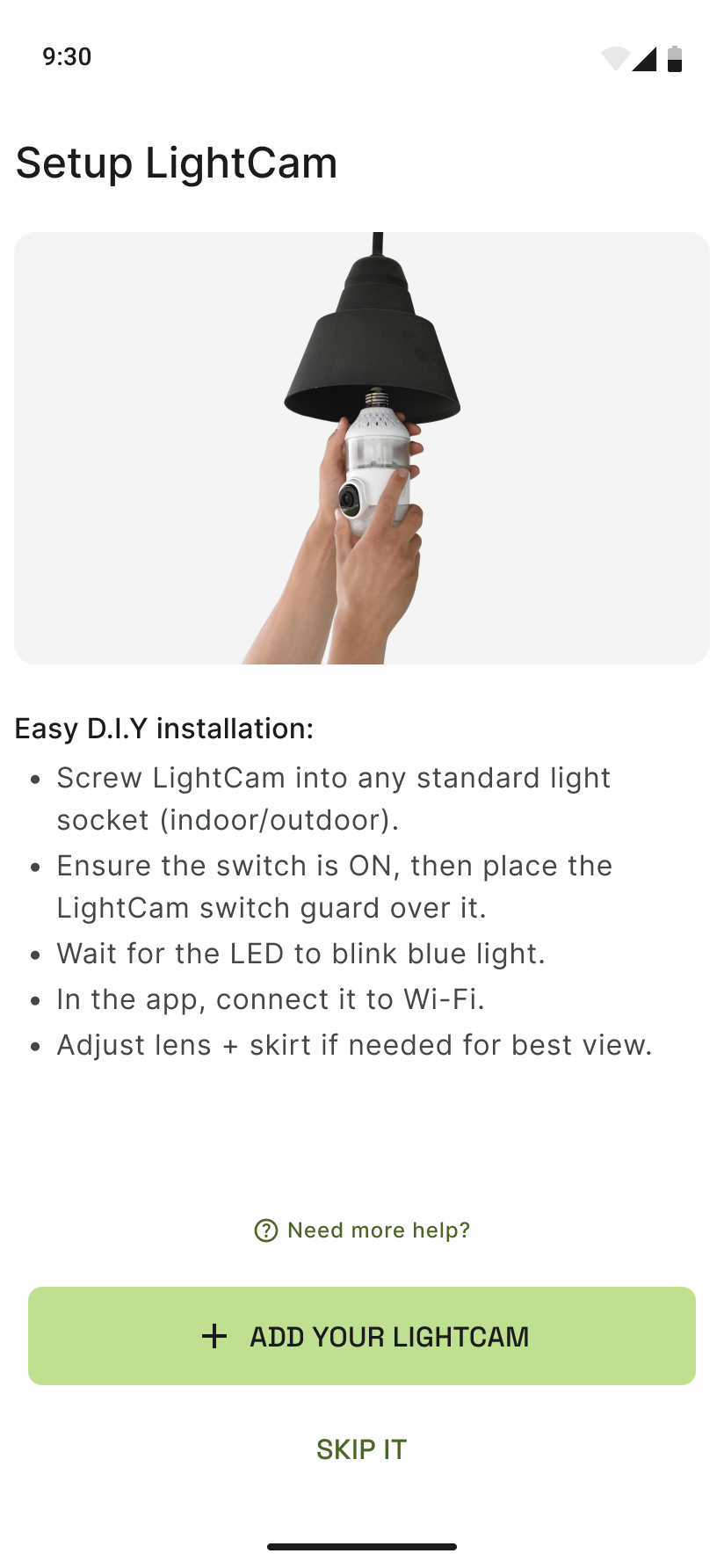
Open setup in the app From the app home, tap Add device or start the add-LightCam flow. You’ll see the setup intro screen.
-
Wait for “Looking for LightCam” The app will scan for your camera. Keep the light switch on and wait for the blue light to blink on the camera.

-
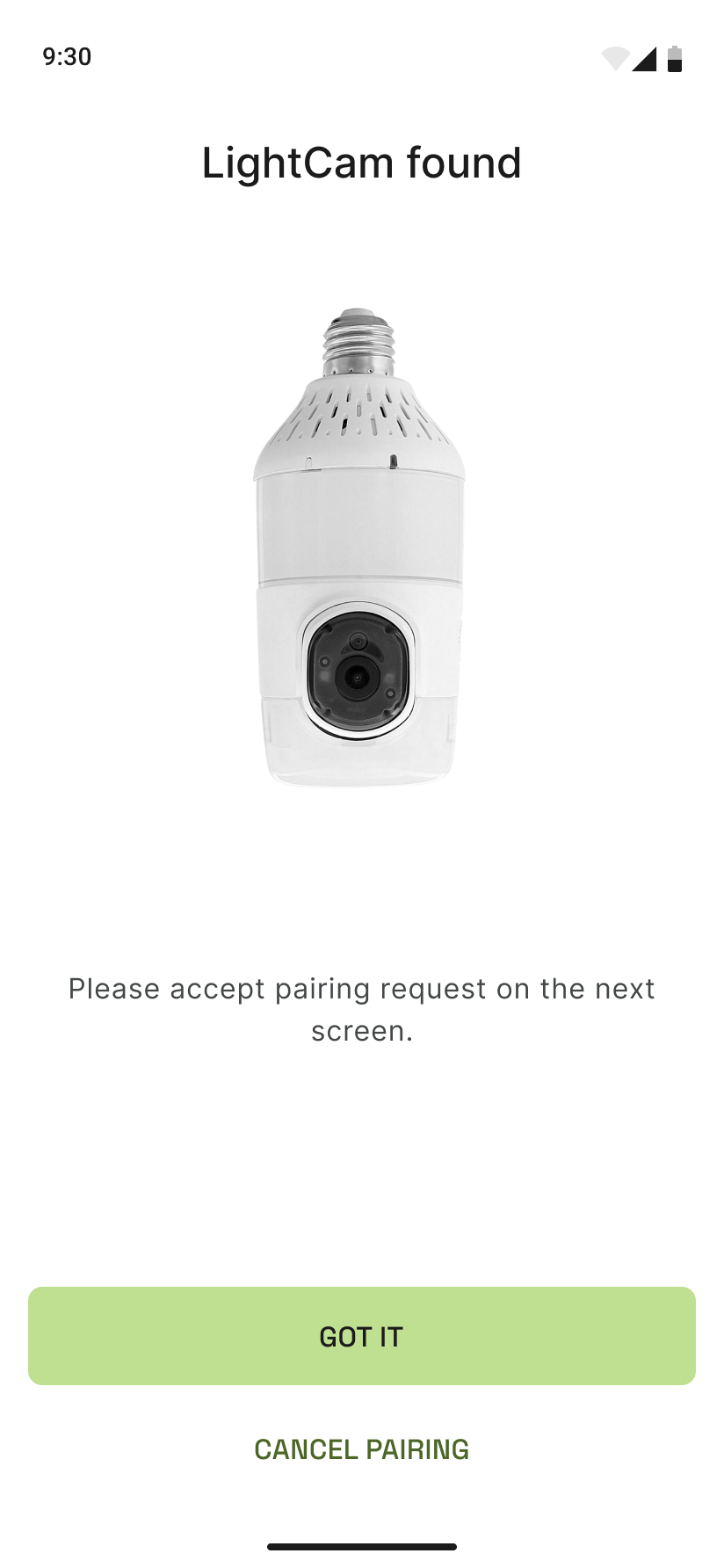
Select your camera when it appears When your device shows up, tap it to continue.
-
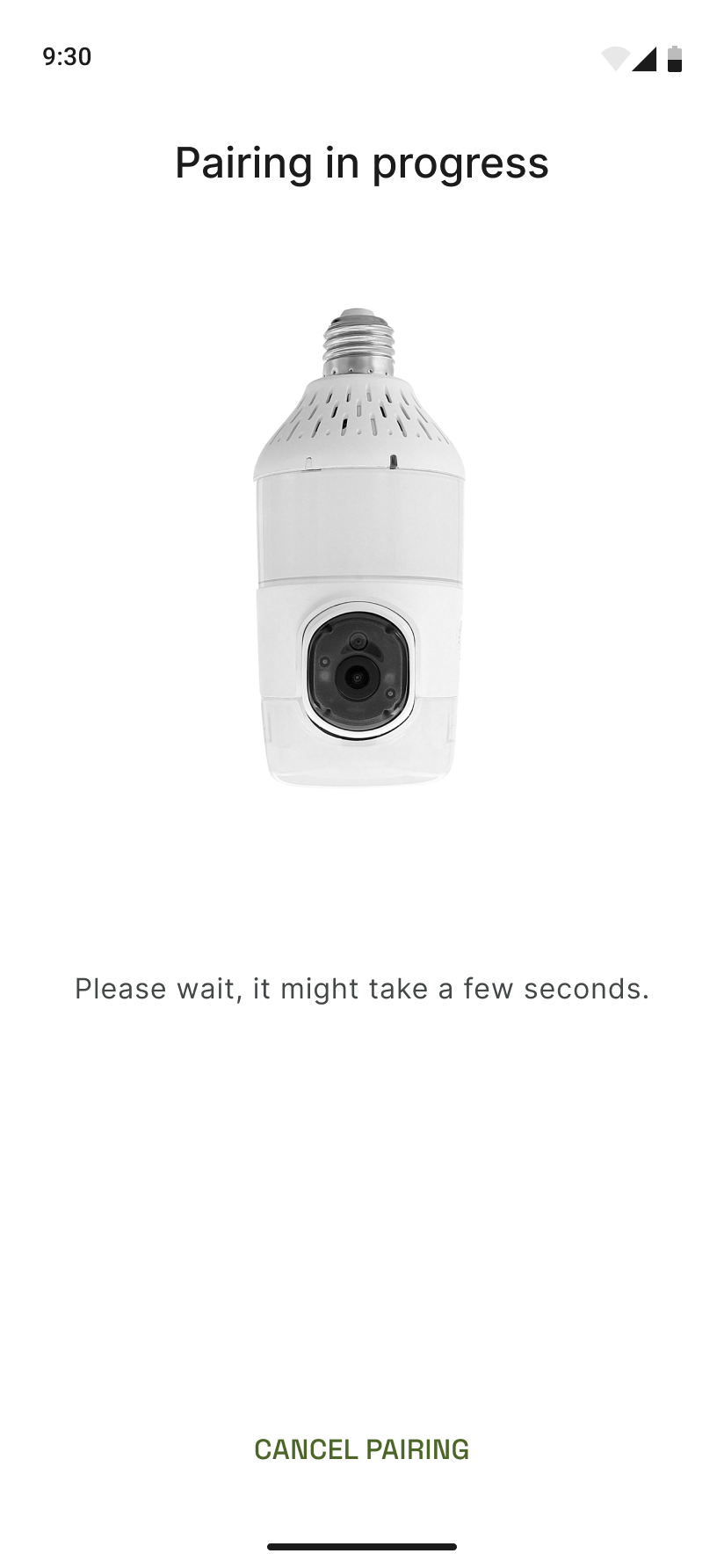
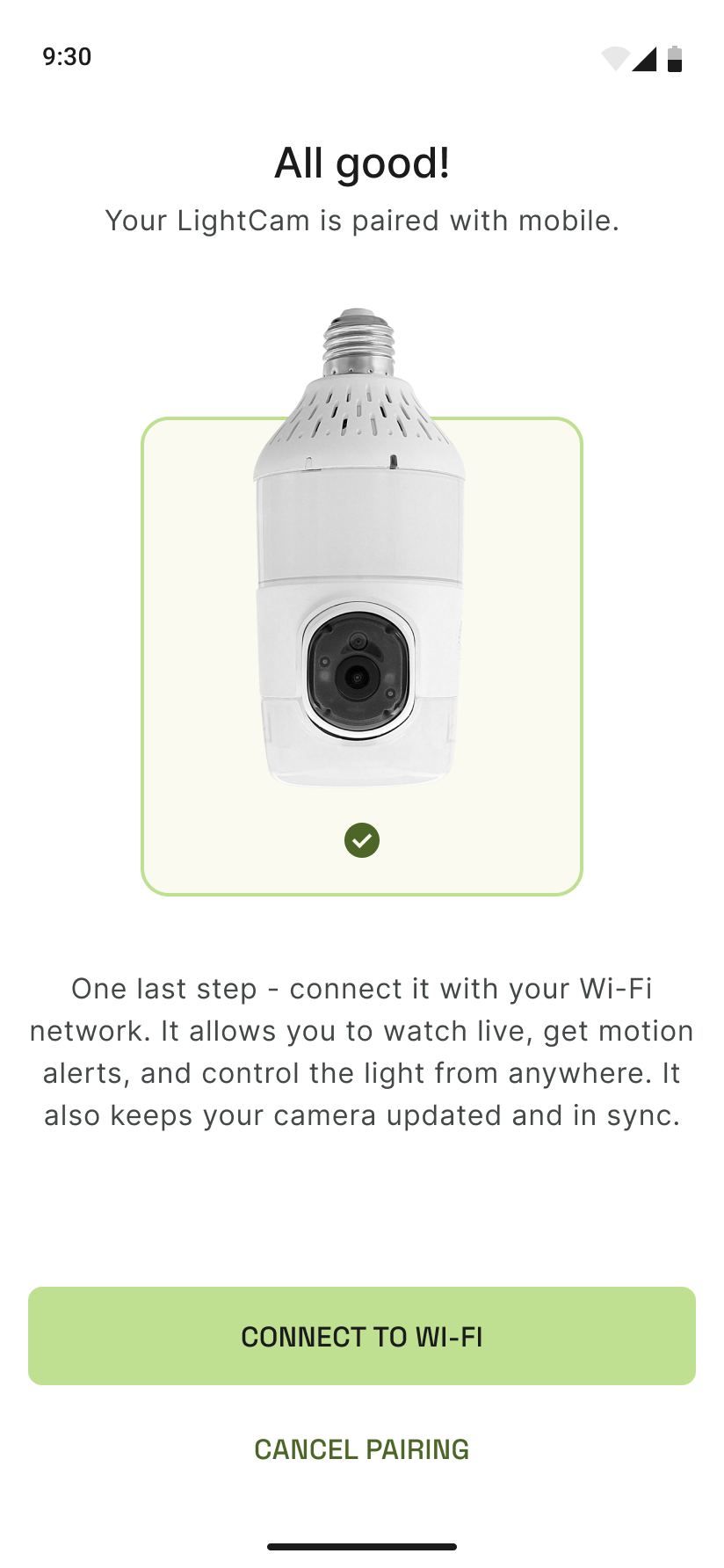
Let pairing finish The app will show pairing in progress. Stay on this screen until it completes — don’t close the app or switch networks.
-
Name your camera and finish When setup is complete, name the camera and tap through to finish. It’ll appear on your home screen.
Common issues
- Camera not found — see Camera Not Found During Setup
- Permissions denied — see Fix Permissions Denied
- Wi‑Fi errors during pairing — see Fix Wi‑Fi Connection Errors During Pairing
- Pairing stuck — see Pairing Stuck in Progress
Still need help?
- Camera Not Found During Setup
- Fix Permissions Denied (Camera / Network / Location)
- Still stuck? Use the Contact us button below, or email support@lightcam.com.
Last updated: June 2026
Still stuck?
Tell us what's going on and we'll write back.